After years of running my blog on WordPress, I finally made the switch to Hugo and GitHub Pages. The result? A blazingly fast, version-controlled blog that costs nothing to host. Here’s how I did it and what I learned along the way. Why I Made the Switch WordPress is powerful, but over time I found myself frustrated with: Performance issues: Even with caching plugins, my site felt sluggish Security concerns: Constant updates and vulnerability patches Hosting costs: Paying monthly for shared hosting Database complexity: Backing up and managing MySQL databases Plugin bloat: Each feature required another plugin Hugo offered a compelling alternative: static site generation, Git-based workflow, and free hosting on GitHub Pages. ...
Hugo Cheatsheet
Hugo Cheatsheet A quick reference for the most useful Hugo commands, flags, and tips. Core Commands Command Description hugo new site <directory> Create a new Hugo site in the specified directory. hugo new <section>/<filename>.md Add a new content file (e.g., hugo new posts/my-first-post.md). hugo server Run a local development server with live reload (defaults to http://localhost:1313). hugo server -D Include drafts (draft: true) when serving locally. hugo Build the site for production (outputs to public/). hugo -d <output-dir> Specify a custom output directory for the generated site. hugo --minify Minify HTML/CSS/JS during the build for smaller payloads. hugo --gc Run garbage collection to remove unused files from the cache. hugo version Show the installed Hugo version. hugo env Display environment variables (useful for debugging). Useful Flags & Options Flag Purpose -s, --source <path> Set the working directory (useful when running from outside the site root). -b, --baseURL <url> Override the site’s base URL (good for staging environments). -t, --theme <name> Force a specific theme (overrides the one set in config.toml). --cleanDestinationDir Delete everything inside the destination folder before building. --ignoreCache Skip the cache and reprocess all files (helps when you suspect stale data). --verbose Show detailed processing information (great for troubleshooting). --logLevel <level> Control log output (debug, info, warn, error). Content Management Tips Front Matter ...
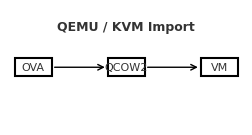
Import an OVA into QEMU/KVM
A reliable, step-by-step guide to bring a VirtualBox/VMware .ova into QEMU/KVM, with both GUI and CLI paths—and fixes for the most common pitfalls.Contents Prerequisites 1) Extract the OVA 2) Convert VMDK → QCOW2 3) Create the VM in virt-manager (GUI) 4) Alternative: virt-install (CLI) 5) Common gotchas & fixes Quick troubleshooting checklist Prerequisites QEMU/KVM, libvirt, and virt-manager installed on the host. User is allowed to manage libvirt (typically being in the libvirt/libvirtd and kvm groups). Enough disk space to hold the converted image (QCOW2). 1) Extract the OVA An OVA is a tar archive containing an .ovf (metadata) and one or more .vmdk disks. ...

Syncing Virtual Machines Over The Network with a NAS (SMB)
A simple, repeatable workflow for one VM image (Kali.qcow2), root-owned files, and an SMB share. Overview I run a Kali Linux virtual machine under QEMU/KVM and wanted to use the same VM across three different machines, while keeping a central backup on my NAS. The approach below keeps one master copy on the NAS and uses rsync to push updates from whichever host I used last and pull them on the next host. ...
Taming the Virtual Hydra: Troubleshooting VirtualBox on NixOS
What started as a quick VirtualBox install turned into a multi‑headed boss fight: USB errors, a sulking kernel driver, a turf war with KVM, and even a Nix syntax bite. Here’s the complete journey and the fixes that finally made my VM boot. Head #1 — USB devices wouldn’t enumerate Can't enumerate USB devices Could not load the Host USB Proxy service: VERR_NOT_FOUND Root cause: Host USB support + Extension Pack missing, and the user not in vboxusers. ...
NixOS Cheatsheet
If you’ve ever felt overwhelmed by NixOS commands, flakes, or the dreaded garbage collection panic, this guide is for you. It’s not just a cheatsheet—it’s a practical survival kit for running NixOS with flakes, keeping your system clean, and always having a rollback strategy when things go sideways. 🖥️ NixOS Essentials Task Command Show version nixos-version Edit config (classic) sudo nano /etc/nixos/configuration.nix Rebuild + switch sudo nixos-rebuild switch Build only (no switch) sudo nixos-rebuild build Roll back last rebuild sudo nixos-rebuild switch --rollback List generations sudo nix-env --list-generations --profile /nix/var/nix/profiles/system ⚡ Flakes Basics Task Command Init flake nix flake init -t templates#nixos Show flake outputs nix flake show Update all inputs nix flake update --commit-lock-file Update one input nix flake lock --update-input nixpkgs --commit-lock-file Build system sudo nixos-rebuild build --flake .#<hostname> Switch system sudo nixos-rebuild switch --flake .#<hostname> Boot (safe) sudo nixos-rebuild boot --flake .#<hostname> 🔄 Safe Updates & Rollbacks Keeping your system updated is great… until it doesn’t boot. Here’s how to avoid disasters. ...

Dual‑Boot: Windows 11 + NixOS (with Flakes)
For ages I wanted a clean dual‑boot between Windows 11 (for the few things that require it) and NixOS (for everything I actually enjoy). This is the full journey: GParted wizardry, fixing MBR/GPT issues, laying out a big EFI (because NixOS loves EFI space), and finishing with flakes. Step 1 — Disk Layout in GParted I booted a live USB with GParted and created the following: EFI System Partition (ESP): 1030 MB, FAT32, flags boot, esp Windows: 200 GB, NTFS Linux swap: 8 GB Linux root: rest of the disk (later Btrfs) Why a big ESP? NixOS + systemd‑boot keeps multiple generations of kernels/initrds. A tiny 100 MB ESP fills up fast. ...
SSH Connect to a Kali Virtual Machine in Virtualbox
Kali is a great learning tool for learning cybersecurity, especially the red-attacking side of it. For the longest time, I had trouble running the Kali VM on my rather old Thinkpad X1 Carbon, as the image consumes quite a few resources. There is a way to use most of Kali’s tools with little resource consumption: ssh into the image via your distro terminal. It turns out it’s quite easy to set this up in VirtualBox, as described in this article: ...
Make Debian 12 Pretty and Useful
There are a few customisations I have come to love on the personal Debian install. This blog post is meant to describe the steps for my ideal (at this point) Debian 12 post-installation cleanup and provide a few security applications for everyday use and a few programs for light security work. Download and Install Debian 12 Download the DVD version for 64-bit PC architecture from here: https://cdimage.debian.org/debian-cd/current/amd64/iso-dvd/ Installation-wise, I chose to install the Gnome and nothing else: ...

Thinking About Computing Needs
After spending days trying to optimise my setup and thinking about the perfect use of my current hardware and also trying to get rid of stuff I don’t use, I came to the conclusion I need more hardware. This is kinda concerning, considering the initial problem I had before all this was that I have too much stuff around. This might have been influenced by watching The Minimalists – Less is Now or John Hammond’s video for his one laptop setup for teaching cybersecurity. ...